FOR IMMEDIATE SERVICE CALL:  866-566-HOST(4678)   
Web Hosting Provided by ProHosting.com - The Premier Web Hosting company in the world
  Our Services:
  Domain Services
  Virtual Web Hosting
  Ecommerce
  Site Promotion
  Support
  Programs:
  Promotions
  Member Referral
  Sales Agent
  Resellers
  Designer Directory
  Other Features:
  ParkPage
  About Us:
  Mission
  History
  Management
  Network
  Strategic Partners
  Site Directory
Setting up account on iPhone
 

Setting Up Email on iPhone


ImageiconImage On the Home Screen, open Settings. Select Mail, Contacts, Calendars
ImageiconImage 1. Choose Add Account...
ImageiconImage  2. Scroll down and select Other .
ImageiconImage 3. Choose Add Mail Account .
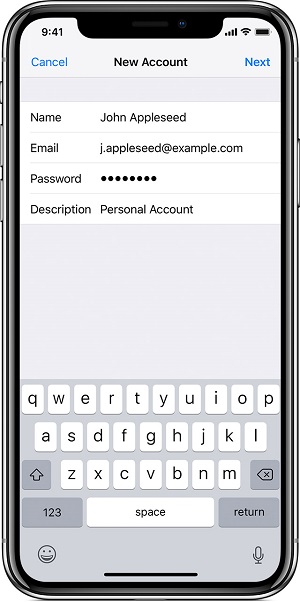
ImageiconImage 4. Enter Name (by preference), Address (this is your email address), Password (this is your email account password), and Description (by preference). Choose Next .
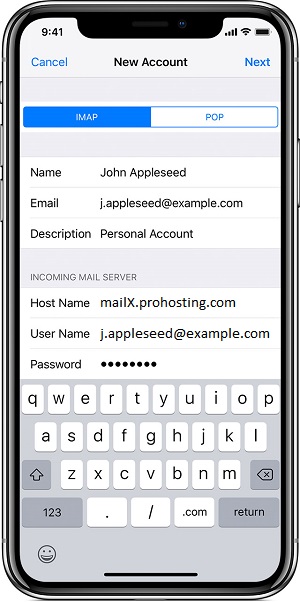
ImageiconImage 5. Select IMAP or POP. You cannot change from IMAP to POP. If you decide to change, you will need to set up the alternate account type from scratch.
6. Populate the Incoming Mail ServerHost Name is mail.yourdomain. User Name is your FULL email address (make sure the whole email address is entered). Password will be filled from previous screen.
7. Populate the Outgoing Mail Server (SMTP) section. Host Name is same, mail.yourdomain. User Name and Password will use same as incoming if not entered.
8. Choose Save .
ImageiconImage

9. iPhone may take time to verify your account (now and at other times). This can take a while. Let it complete verification.
10. iPhone may prompt that it cannot connect using SSL. We recommend using SSL (choose No). If you do not plan on using SSL, click Yes. These settings can all be modified later.
11. You may have to click Save again. iPhone may prompt that this account may not be able to send or receive email. Click Save .

ImageiconImage

12. Your account is created, but you might need to ake some changes. Click on Your Domain Account (the Description entered on step 4). Scroll down to SMTP and choose mail.yourdomain .

ImageiconImage

13. Choose your SMTP for this account (Primary Server ).

ImageiconImage 14. If using SSL, make sure SSL is set to ON and set Server Port to 465. If not using SSL, make sure SSL is set to OFF and set Server Port to 587. Choose Done . Choose Your Domain Account to go back to main account page. Choose Advanced (see image in step 12).
ImageiconImage 15. If using SSL, make sure SSL is set to ON and set Server Port to 995. If not using SSL, make sure SSL is set to OFF and set Server Port to 110. Choose Your Domain Account to go back to main account page. Click Done. Your email account should now be ready for use.

/Setting up email on iPhone

CALL TOLL FREE: 866-566-HOST (4678)

ProHosting has hosted over [an error occurred while processing this directive] web sites since 1996!
 
Need Help NOW?


  866-566-HOST(4678)   © Copyright ProHosting Corporation. All Rights Reserved. 
    Your use of this website constitutes acceptance of the ProHosting® Privacy Policy and Terms & Conditions